
How to Upload Your Local Save to Your 1.0 Enshrouded Server
Upload your Enshrouded local world to a server: stop the server, rename your save to world0.ksd, then upload via File Manager or FTP.
Have you built an epic base in your single-player world and now want to invite your guild to see it? Flameborn, you are in luck! With the massive 1.0 update, the developers completely streamlined the save system. Instead of messing with confusing hex-string file names, transferring your local world to a dedicated server is now a simple file swap.
Please note that in Enshrouded, your character data (your levels, skills, and personal inventory) is saved locally on your own PC. The server only handles the world data, which includes your bases and voxel terrain changes. This guide will walk you through exactly how to grab your local world and upload it to your dedicated server.
Step - By - Step Guide
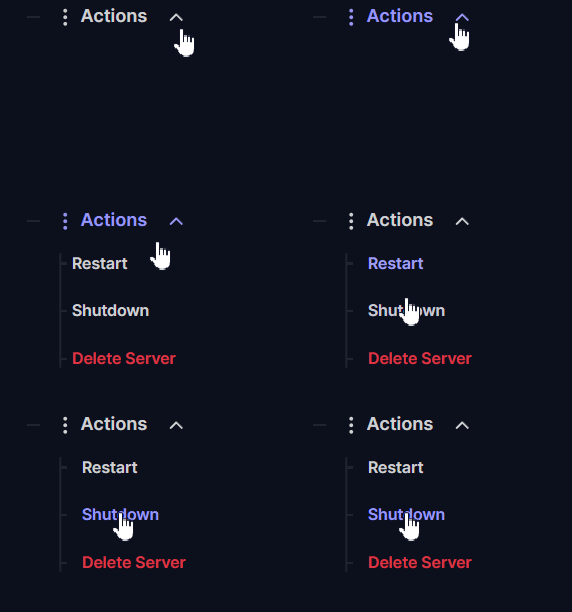
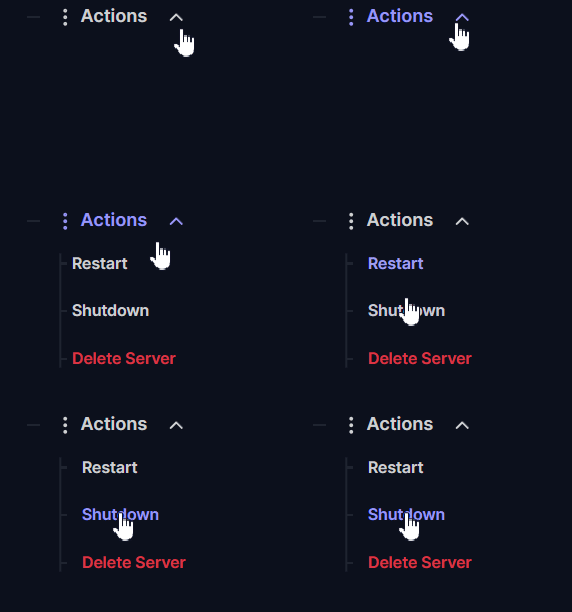
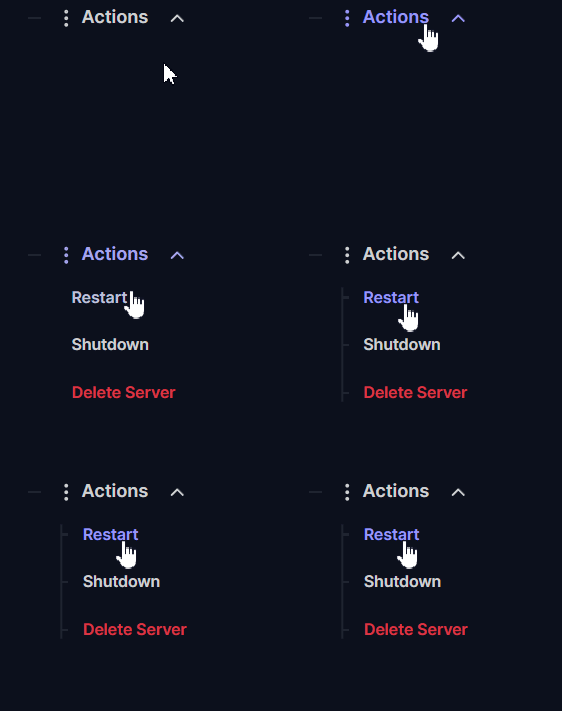
Before you begin, you must stop your server by clicking on Actions > Shutdown. Modifying or uploading save files while the game engine is actively running will corrupt your world.
Part 1: Finding Your Local World Save
First, you need to locate your single-player world files on your local computer.
Open File Explorer on your PC and navigate to your Steam user data folder. The default installation path is typically:
C:\Program Files (x86)\Steam\userdata\.
Inside the
userdatafolder, open the folder named with your Steam Friend Code (a string of numbers). If you do not know your Friend Code, you can find it by going to your Steam Library, clicking on your Friends List, and selecting "Add a Friend".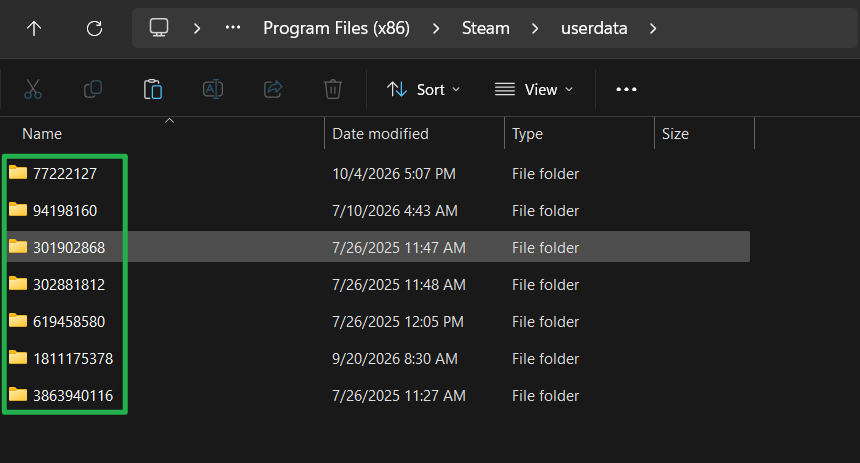
Open your Friend Code folder and locate the specific folder for Enshrouded, which is named
1203620. Open it, and then open theremotefolder inside.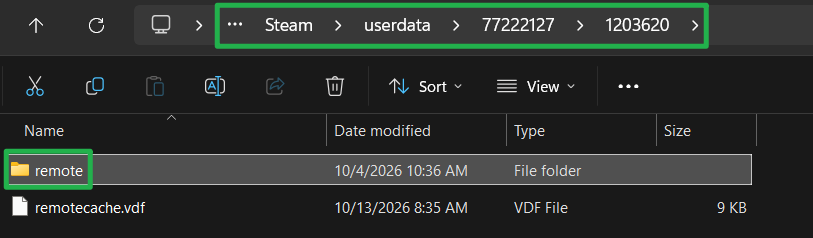
You will now see your local save files. Look for your world file, which will be a
.ksdfile. Copy your most recent world file to your desktop and rename it exactly toworld0.ksd.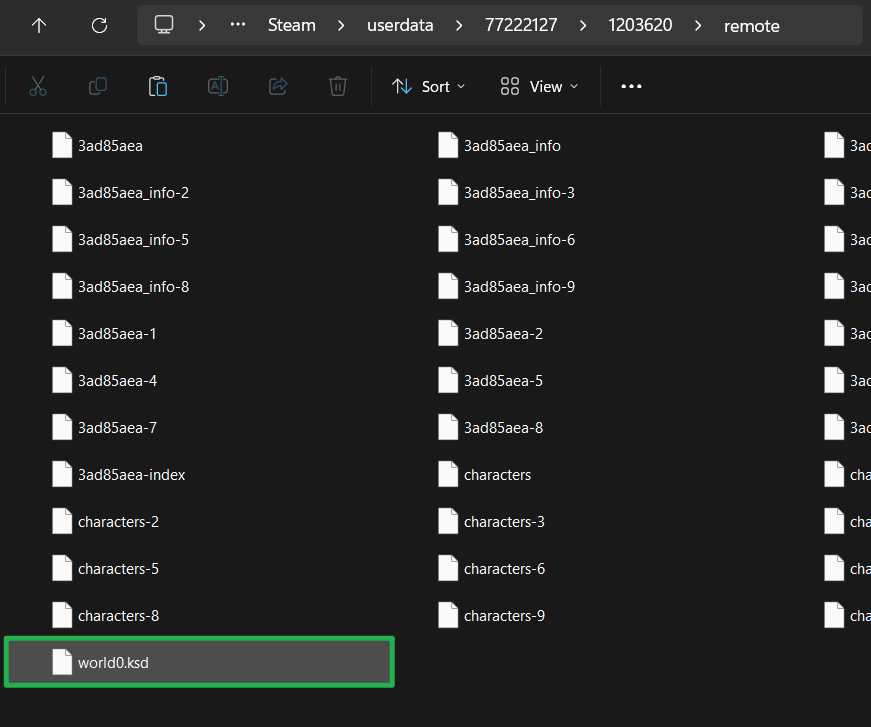
Part 2: Uploading to Your Server
Now that you have your world0.ksd file ready on your desktop, it is time to swap it into your server files.
Navigate to Actions > Shutdown on your server panel dashboard to safely bring your server offline.
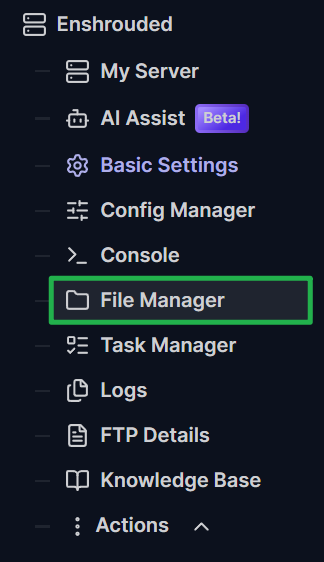
Open the File Manager on your dashboard or connect using your preferred FTP client like FileZilla.
Navigate to the server's save directory located at
Server/savegame/. If you do not see this folder, you must start your server at least once to generate the default files, then shut it down again.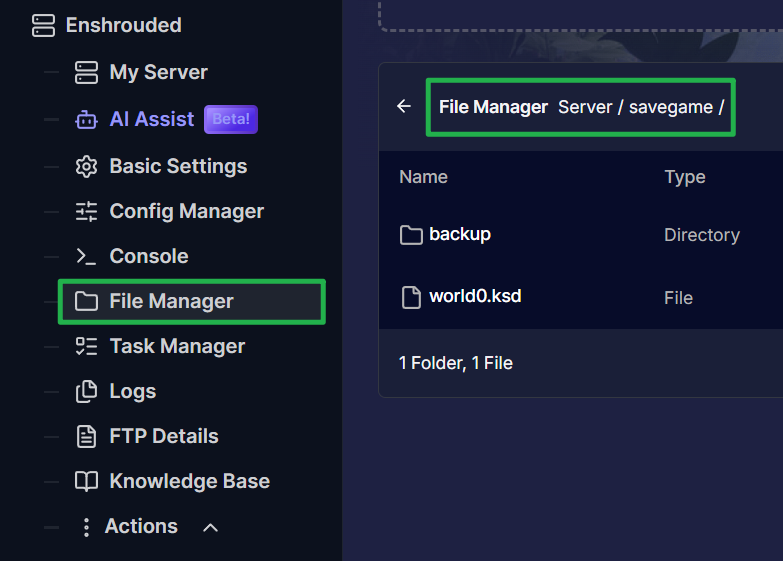
Inside this folder, you will see a
backupdirectory and the server's defaultworld0.ksdfile. Delete the existingworld0.ksdfile on the server to get it out of the way.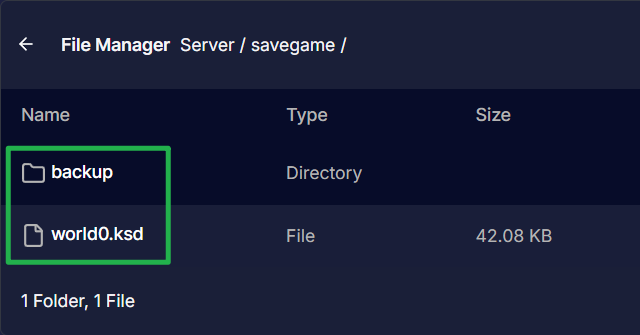
Upload your local
world0.ksdfile from your desktop directly into thisServer/savegame/folder by dragging and dropping the folder into the upload bubble above the path.
Navigate to Action > Restart on your dashboard to boot the server back up and load your uploaded realm!
Migrating Older Pre-1.0 Saves
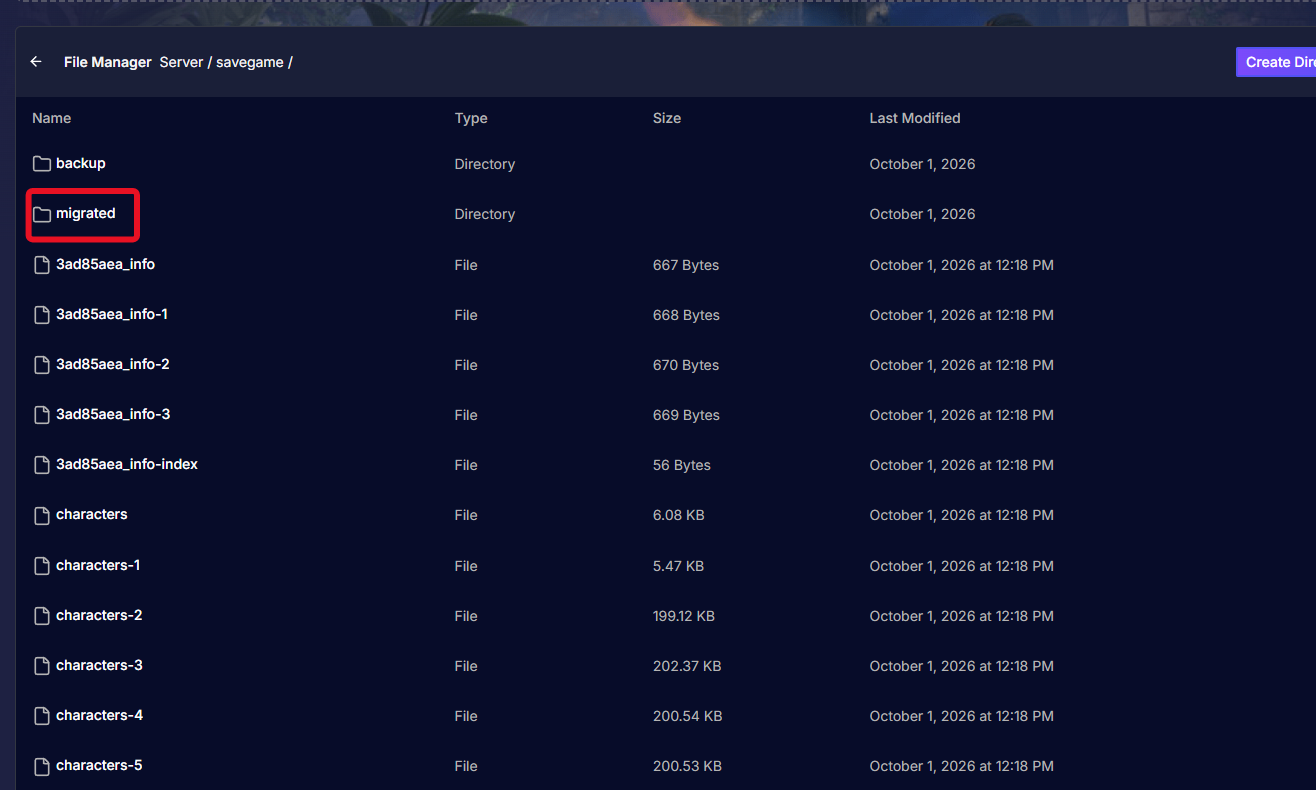
If you are returning to the game and want to upload an older save (the old format that used multiple hex-string files), the game engine will handle the upgrade for you! After removing the default world created by the server, simply upload your old save files into the Server/savegame/ folder and boot up the server. The game automatically moves these older files into a new migrated folder and converts everything into a single, compressed world0.ksd file on boot.
Troubleshooting and Tips
If your uploaded world is not loading correctly, run through these quick troubleshooting checks:
- Server Loaded a Fresh World: The server is hard-coded to look for a specific file name. You must rename your uploaded local world file to exactly
world0.ksd. If you named it something else (likeworld1.ksdor misspelled it), the server will ignore it and generate a new blank map. - Missing Characters: Remember that character files are strictly local to your personal computer. When you join your newly uploaded server world, you simply select your existing local character from your game client's main menu.
- Cannot Find the Savegame Folder: The server must be run at least one time to generate the
Server/savegame/folder and its default world. Start your server, wait a minute for it to fully boot, use Actions > Shutdown, and check the File Manager again.
Conclusion
Your Flame is now shared! You have successfully migrated your personal sanctuary to a persistent, multiplayer world. You can now invite your friends to help you build, explore, and conquer the Shroud in the exact world you started. Ensure you keep regular backups of your new server map, and enjoy the adventure.
If you encounter any issues or have further questions, feel free to contact our support team for assistance!