How to Add Mods on Your Palworld Server with Mod Manager
Easy Palworld modding via Mod Manager: search Steam Workshop, install mods, stop & restart, ensure clients match, troubleshooting tips.
Catching every rare Pal and building the perfect automated breeding base is already a blast, but adding mods to your Palworld server takes the survival experience to a whole new level! Whether you want to increase the base camp limit, tweak stamina drain, or add brand new items to the Palpagos Islands, modifying your world is the best way to keep your guild entertained.
In the past, modding meant digging through complicated server files, but our fully automated Mod Manager makes customizing your PW world incredibly easy. This guide will walk you through how to effortlessly search for and install Steam Workshop mods directly through your server panel!
Important Compatibility Note: This guide covers Steam Workshop mods only. If you want to install third-party or non-Steam mods from external sites like Nexus Mods, please refer to our separate guide dedicated to manually installing non-Steam mods.
Furthermore, Steam Workshop UE4SS mods and native UE4SS injected mods cannot be mixed and matched. You must choose one method or the other. Attempting to run both simultaneously will cause conflicts, break mod functionality, or prevent your server from booting properly.
Step - By - Step Guide
Before you add any new files or modify your game configuration, it is highly recommended to stop your server to prevent any save data corruption.
Navigate to Actions > Shutdownto safely turn off your server before making changes.
Log in to your server panel and click on the Modstab located on the left-side navigation menu.
When prompted to select your mod source, click on the Steam Workshop option.
Use the search bar in the top right corner to find the specific Palworld mods you want to add to your server.
Click the Installbutton next to the mod you wish to add. The system will automatically download the files and place them in the correct directory.
Navigate to Actions > Restartto boot up your server with your new mods active!
The mod should automatically be downloaded and enabled in the server'sPalModSettings.iniconfig.
Uninstalling Mods
To uninstall a mod, just go to the Installed section under the mods tab, click the mod you want to remove, then click, Uninstall.
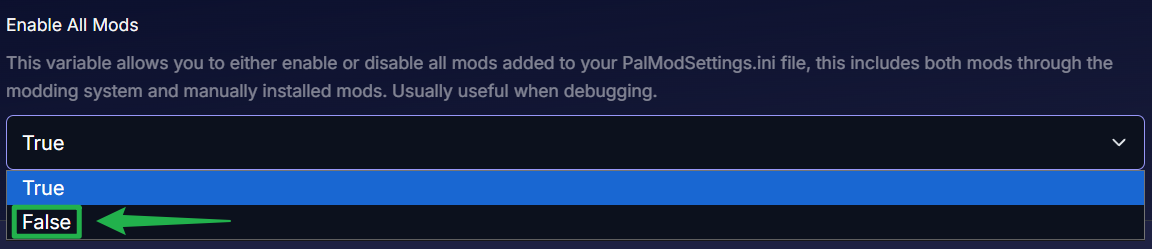
If you have multiple mods added and you wish to disable all of them, you can also go to your Basic Settings, locate Enable All Mods and set it to False.
Troubleshooting and Tips
If your mods are not working or your server is failing to boot, try running through these quick checks:
Clients Must Match the Server: For most content mods, anyone trying to join your server must have the exact same mods installed on their own personal computer. If a player is missing a mod that the server is running, they will likely get a connection timeout error.
Always Stop Your Server First: Modifying active server files while the Palworld engine is running is a guaranteed way to corrupt your world save or break your configuration files. Always use Actions > Shutdownbefore tweaking your mods.
UE4SS Requirements: As mentioned above, some complex or script-based manual mods require the UE4SS tool to function properly on dedicated servers. Always check the mod developer's page to see if UE4SS is a strict dependency before installing.
Game Updates Breaking Mods: Palworld is actively being updated by the developers. When a major game update drops, it often breaks older mods. If your server crashes immediately on startup after an update, you may need to wait for the mod creators to update their files, or temporarily uninstall the broken mods via the Mod Manager.
Installing Non-Steam Mods: If you are looking to upload non-Steam or third-party mods from external sites like Nexus Mods, please note that a specific guide is available for manually installing non-Steam mods using UE4SS.
Conclusion
Customizing your Palworld server breathes fresh life into your adventure! By letting the automated Mod Manager handle your Steam Workshop files, you can spend less time tinkering with server settings and more time exploring dungeons and catching legendary Pals with your friends. Install your favorites, reboot the server, and get back to the grind!
If you encounter any issues or have further questions, feel free to contact our support team for assistance!
Happy gaming!
This website uses cookies
We use cookies to enhance your browsing experience, serve personalized ads or content, and analyze our traffic. By clicking "Accept All", you consent to our use of cookies.