
How to Enable and Use the REST API on Your Palworld Server
Enable Palworld REST API to manage your server remotely: configure settings, note REST port/admin password, then test via PowerShell call.
As your Palworld community expands and players spend countless hours exploring the Palpagos Islands, managing your world directly from in-game can quickly become inefficient. If you are tired of logging into the game every time you need to check server performance metrics, broadcast server-wide messages, or manage active player rosters, setting up the native REST API is the ultimate solution.
The REST API allows you to send commands and pull real-time data directly from your server using external tools like Node.js, Python, or PowerShell. Whether you want to build a custom Discord bot to display live server status or simply run quick administrative commands straight from your desktop, enabling this feature unlocks a whole new level of server control. This guide will walk you through exactly how to turn it on and test your first API request.
Step-by-Step Guide
Getting your API set up requires configuring a few options on your server panel, followed by running a quick script on your local machine to ping your server.
Part 1: Enabling the REST API
Before sending commands, you must enable the API setting and note down your connection details. Follow these exact steps:
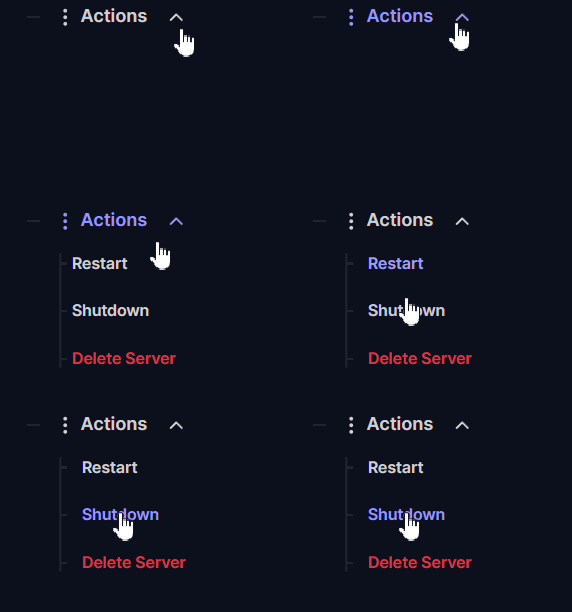
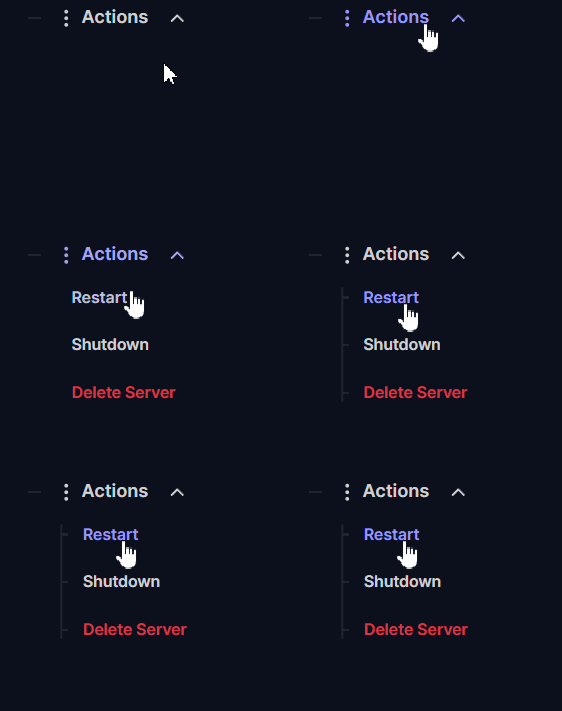
Log into your server panel and navigate to Actions > Shutdown to safely turn off your server. You should always stop your server before making configuration changes!
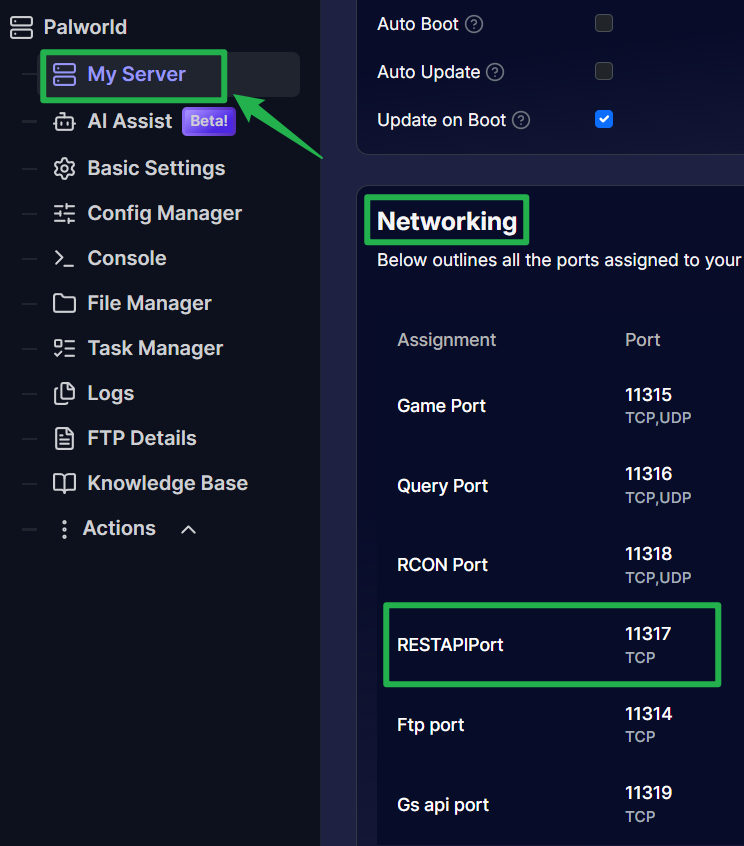
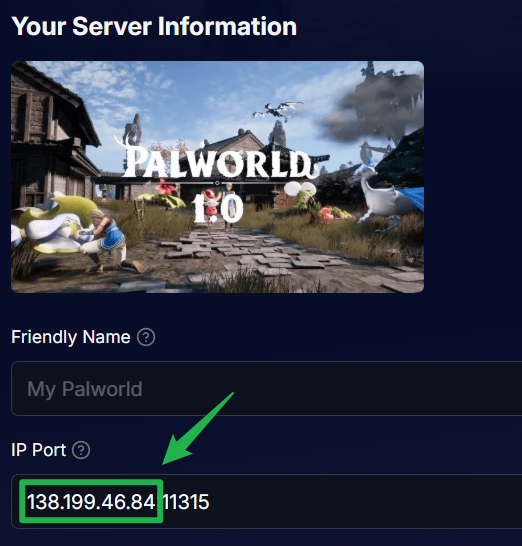
On the main page of your server panel, scroll down to the Networking section. Here you will see all assigned ports for your instance, including your RESTAPIPort and server IP address. Write these numbers down.
Click on the Basic Settings tab located on the left side navigation menu.
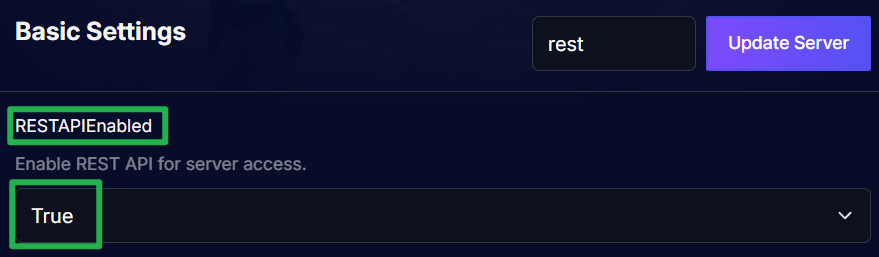
Search for the Enable REST API option and toggle it to true. While on this page, you can also view or update your Server Admin Password. Write down your admin password as you will need it for authentication!
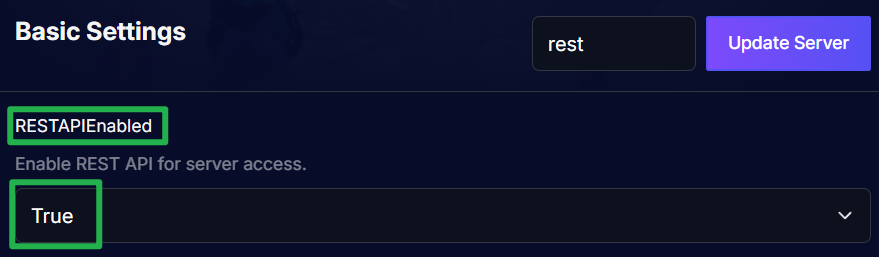
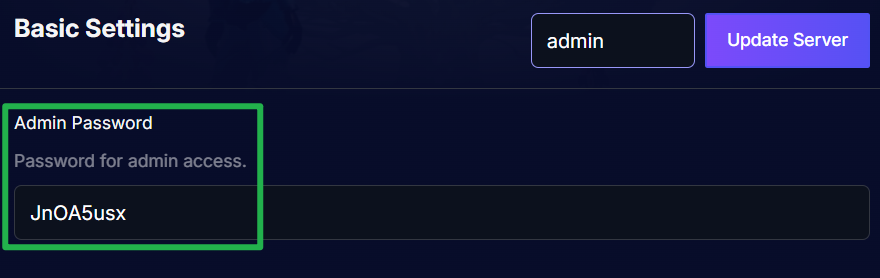
Click the Update Server button to apply your changes.

Navigate to Actions > Restart to boot your server back up. Your server is now actively listening for API calls!
Part 2: Sending Your First Command
Now that the API is enabled, you can use a simple Windows tool called PowerShell to test the connection. This script will pull basic server info directly to your screen without requiring any complex programming knowledge.
On your Windows PC, open the start menu, type PowerShell, and open the app.

- Prepare your request by encoding your admin password and targeting your server IP address and RESTAPIPort. Copy the following script, but replace the placeholders with your actual credentials:
$cred = [Convert]::ToBase64String([Text.Encoding]::ASCII.GetBytes("admin:YOUR_ADMIN_PASSWORD"))
$headers = @{ Authorization = "Basic $cred" }
Invoke-RestMethod -Uri "http://YOUR_SERVER_IP:YOUR_REST_PORT/v1/api/info" -Headers $headers
Paste the updated script into your PowerShell terminal and press Enter.
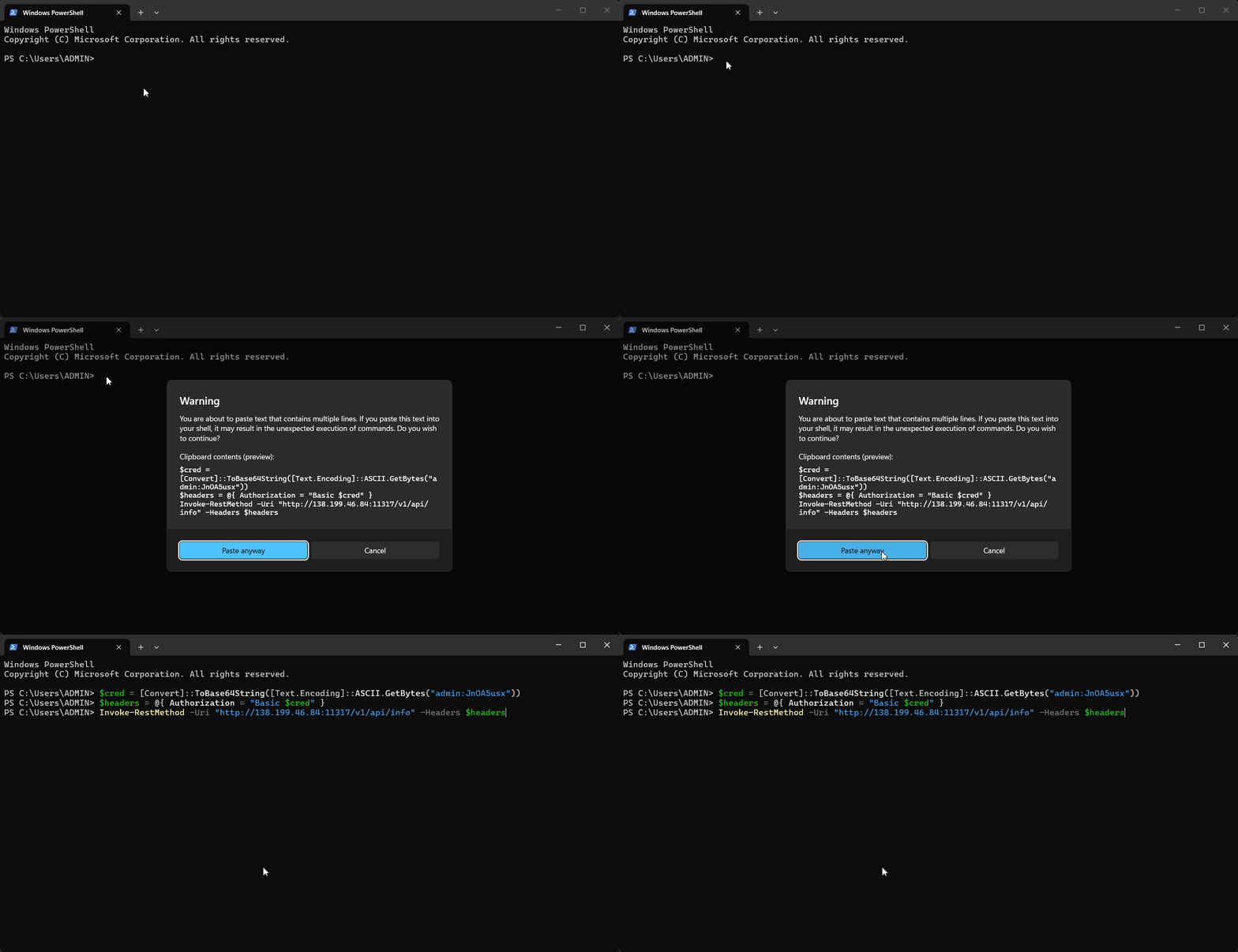
If connected properly, the terminal will return your server's current version, name, and active player data in a clear text format!

Troubleshooting and Tips
Working with APIs can occasionally throw a connection rejection. If your PowerShell command returns an error, keep these quick fixes in mind:
- Check Your Auth Credentials: The REST API requires strict authentication. Make sure you format the authorization string using
admin:followed immediately by your exact admin password. If you change your admin password in Basic Settings, remember to update your script to match. - Verify Your REST Port: Double-check the Networking box on your server panel main page. Do not confuse your Game Port or Query Port with your RESTAPIPort. Using the wrong port will cause the request to time out.
- Use HTTP, not HTTPS: Palworld's native API uses standard HTTP without SSL encryption. Make sure your target URL starts with
http://rather thanhttps://, or the connection will fail. - Automate Your Server: Once you confirm your PowerShell command works, you can build custom automated scripts to send server-wide broadcasts, fetch real-time player counts, or kick disruptive players without ever opening the game!
Conclusion
Enabling the REST API is a massive game changer for Palworld server owners. Instead of constantly logging into the game to manage your world, you can monitor and control your entire server directly from your desktop or integrate it with external administrative tools. Check your ports, run your first PowerShell request, and take full control of your Palpagos adventure!
If you encounter any issues or have further questions, feel free to contact our support team for assistance!