
How to Enable Voice Chat on Your Palworld Server
Enable voice chat on your Palworld server: toggle server setting, set in-game audio, adjust mic/input, and follow quick troubleshooting tips.
Coordinating a massive raid on a Syndicate camp or yelling at your guildmates for stealing your hard-earned Pal Spheres is always better with a working mic. While Palworld features native voice communications, it is often disabled by default when you first boot up the game.
Fortunately, getting your comms online is a quick process. It requires a simple toggle on your dedicated server followed by a quick settings adjustment for each player in-game. This guide will walk you through exactly how to activate voice chat so your entire guild can start communicating across the Palpagos Islands.
Step-By-Step Guide
Getting your microphone working in Palworld takes just a few clicks. Follow these exact steps to get your server and your local game client ready for comms:
Part 1: Enabling Voice Chat on the Server
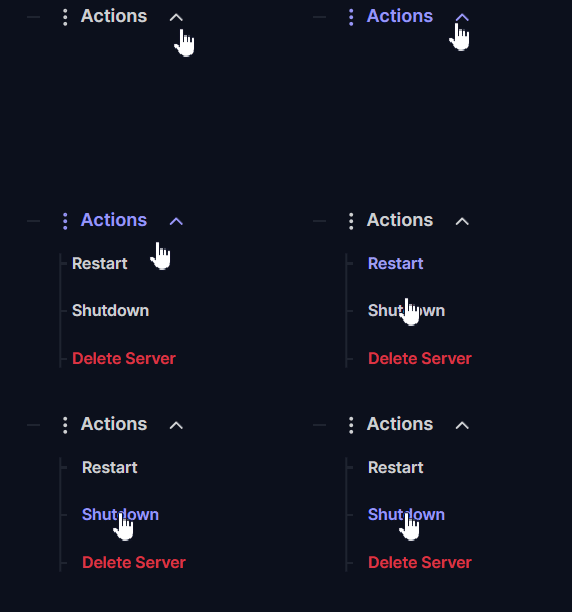
Log into your server dashboard and navigate to Actions > Shutdown to safely turn off your server. You should always stop your server before making configuration changes.
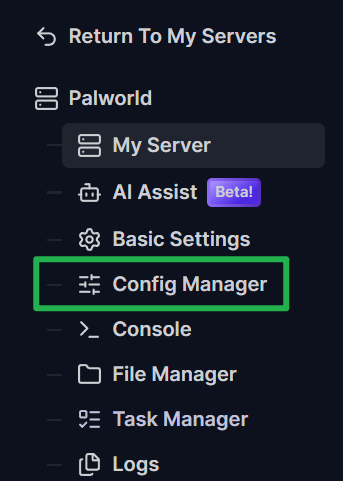
Navigate to the Basic Settings tab on your left-side menu.
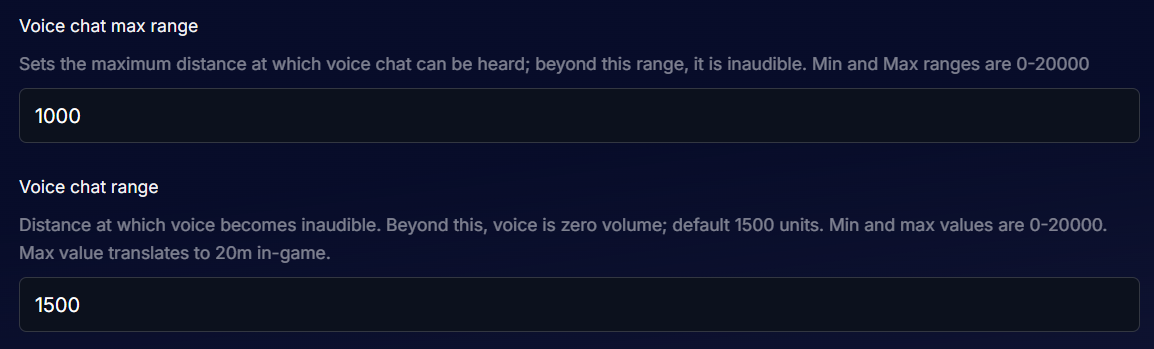
Use the search bar to look for "voice" or scroll down until you find the Enable Voice Chat setting. Click the dropdown menu and set it to true.

You can also adjust the max range settings here if you want voices to carry further across your base!
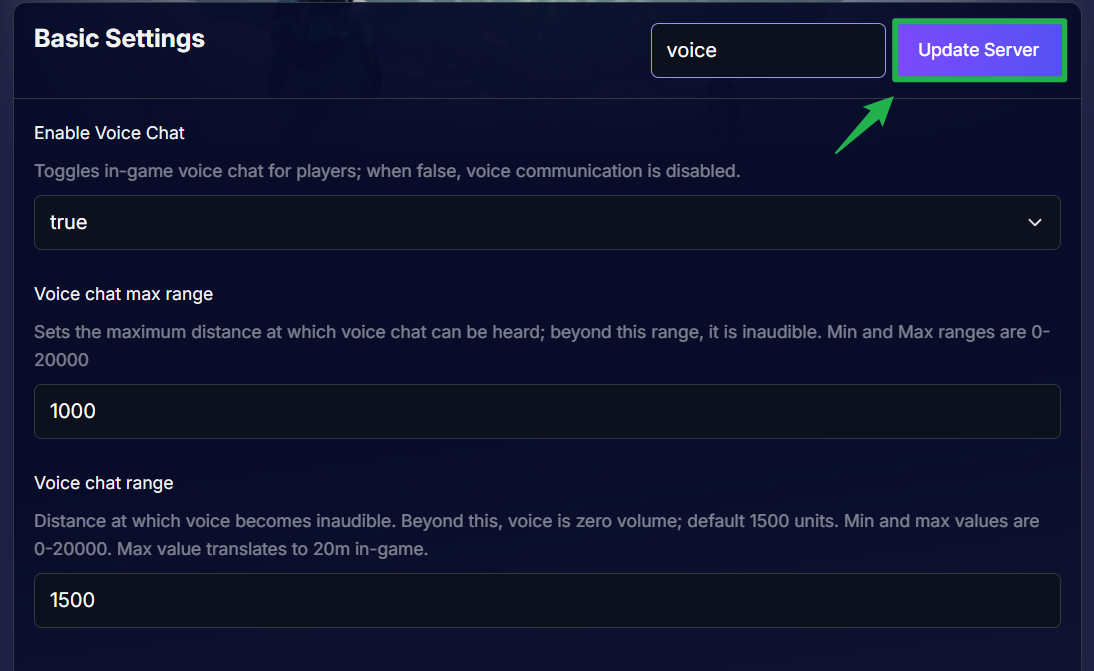
Click Update Server to save your changes.
Navigate to Actions > Restart to boot your server back up with comms officially enabled!

Part 2: Enabling Voice Chat In-Game
Launch Palworld and join your multiplayer server and press the ESC key to open your main menu and click on Options.
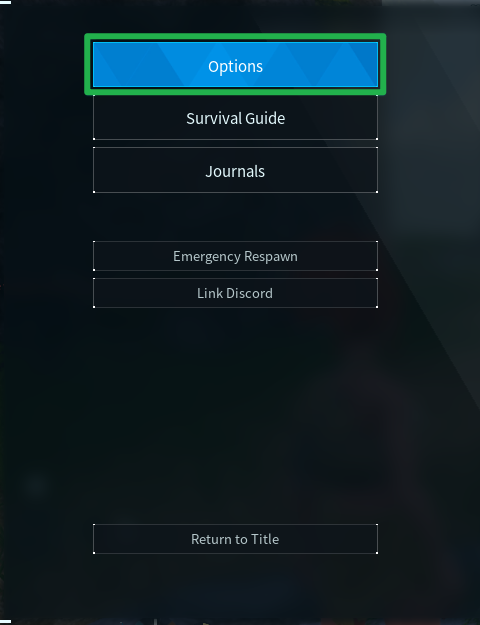
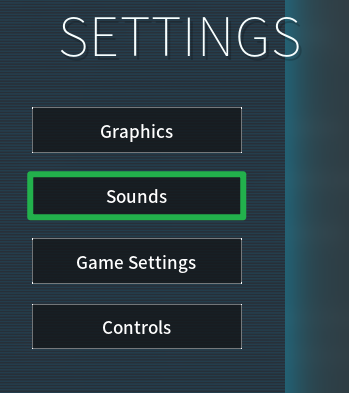
Navigate to the Sounds tab located at the top of the screen.
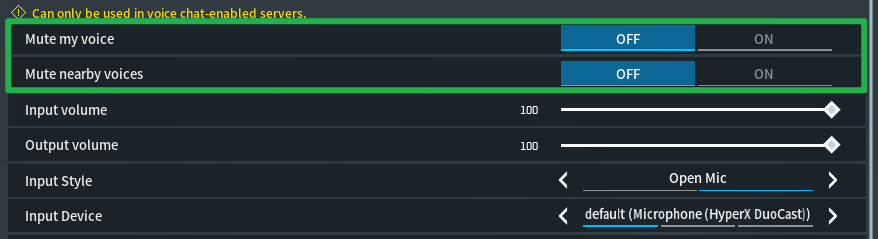
Scroll down to the voice chat settings. You will see options like Mute my voice and Mute nearby voices. Make sure both of these are toggled to OFF so you can speak and hear your friends.
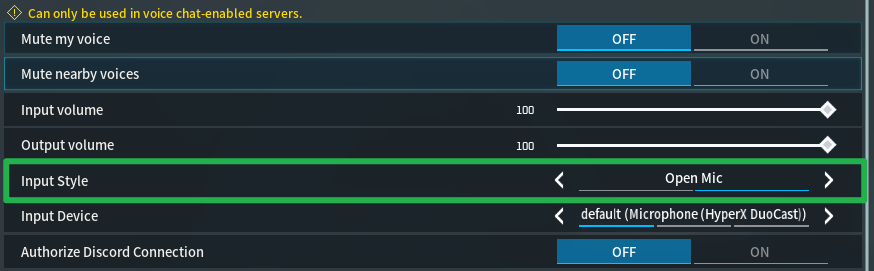
Just below these toggles, adjust your input and output devices to match your specific gaming headset. You can also choose between continuous transmission or push-to-talk!
Troubleshooting and Tips
If you have enabled the settings but your friends still cannot hear your tactical callouts, keep these quick fixes in mind:
- Check Your Push-To-Talk Bind: If you opted for push-to-talk instead of an open mic, the default key is usually set to T on your keyboard. You can change this binding anytime by checking the Keybindings tab in your options menu.
- Verify Windows Audio Settings: Sometimes Palworld grabs the wrong default microphone from your PC. Press the Windows key, type "Sound Settings", and ensure your preferred headset is selected as the default input device.
- Tell Your Guild: Enabling voice chat in the server panel allows it to work, but every single player on the server must go into their own in-game Audio options and manually unmute the voice chat settings to hear each other!
Conclusion
Getting your voice chat up and running transforms your standard multiplayer server into a truly cooperative survival experience. By enabling the setting on your dashboard and double checking your in-game audio options, your guild will be perfectly synced up for those high level boss fights. Do a quick mic test, grab your favorite mount, and get back to exploring!
If you encounter any issues or have further questions, feel free to contact our support team for assistance!