
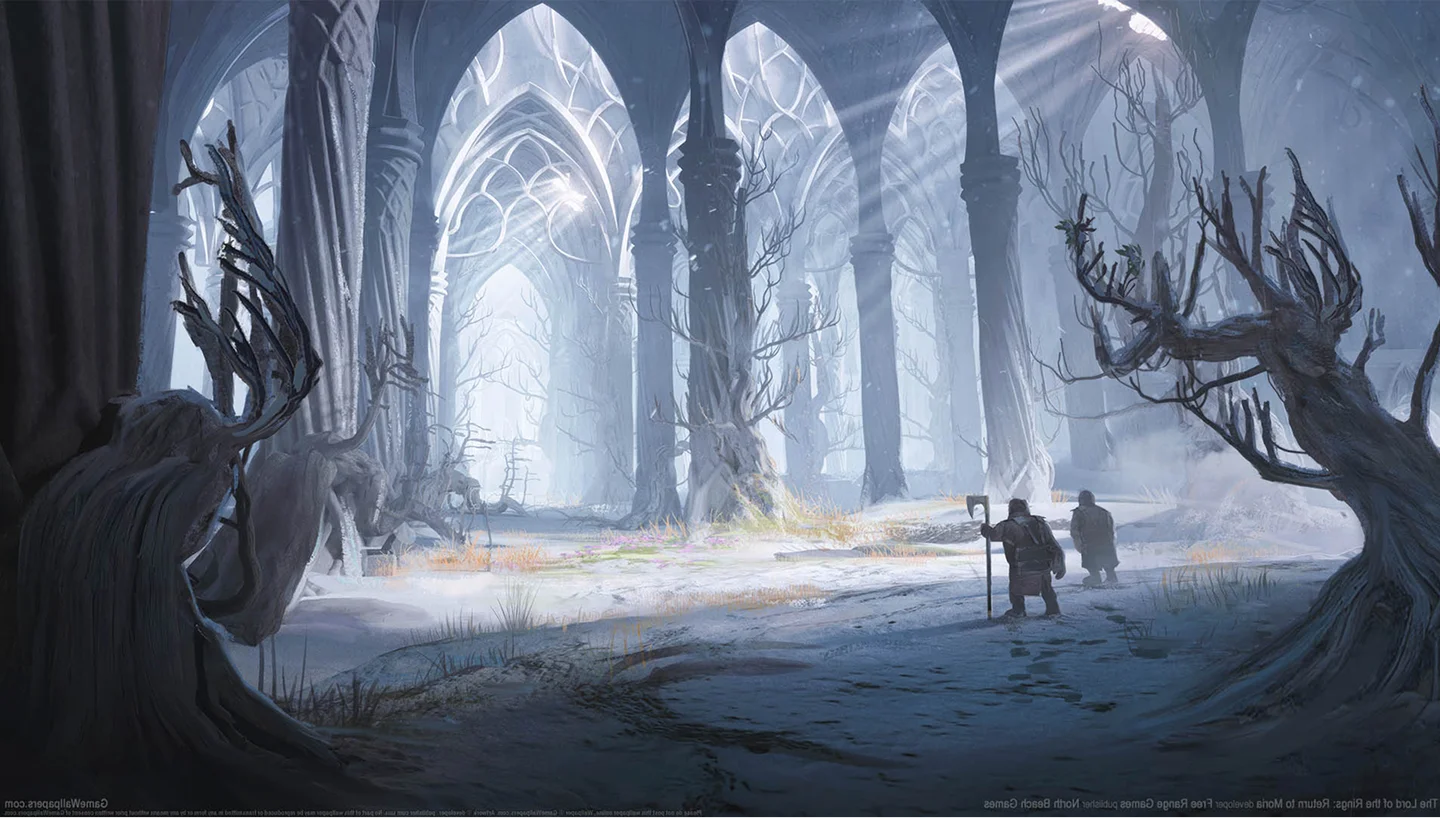
The Lord of the Rings: Return to Moria Server Hosting
Reliable hosting for Return to Moria co-op survival, exploration, and dwarf strongholds.
3GB
3 GB / 30 days
$8.07/ 30 days
SAVE ~10%$8.97
Best for small servers & a few friends
- Unlimited game swap, 80+ games
- Ping AI Assistant
Instant activation · Cancel anytime
5GB
5 GB / 30 days
$13.46/ 30 days
SAVE ~10%$14.96
Best for medium groups & modded servers
- Unlimited game swap, 80+ games
- Ping AI Assistant
Instant activation · Cancel anytime
8GB
8 GB / 30 days
$21.54/ 30 days
SAVE ~10%$23.93
Best for large, busy, heavily-modded servers
- Unlimited game swap, 80+ games
- Ping AI Assistant
Instant activation · Cancel anytime
Build your own
Same hardware. Your rules.
- Everything included +
- Unlimited Players
- Any RAM size you need
Instant activation · Cancel anytime
RAM-based pricing · from $2.69 / GB (per 30 days) · pay only for what you need
- Xeon / Ryzen
- High-frequency CPUs
- DDR5 RAM
- Dedicated, not shared
- NVMe SSD
- Fast world loads
- 10Gbps
- Network uplinks
- DDoS Shield
- Enterprise protection
Launch your private The Lord of the Rings: Return to Moria dedicated server in minutes. Built for multiplayer stability with persistent worlds and dedicated performance.
Why PingPlayers is perfect
for your The Lord of the Rings: Return to Moria server
Everything you need to host, manage, and scale your The Lord of the Rings: Return to Moria server without technical friction.
Instant AI setup
No manual config required. Your The Lord of the Rings: Return to Moria server is ready in seconds.
High-frequency CPUs
Strong single-core performance for smooth The Lord of the Rings: Return to Moria gameplay.
NVMe SSD storage
Fast disk speeds for quick map loading and save writes.
DDR5 RAM
Stable memory for deep procedural mines and busy expeditions.
Enterprise DDoS protection
Always online, always protected from attacks.
Full config control
Adjust all server settings from our control panel.
Automated backups
Protect your save before delving into the dark.
Instant upgrades
Scale RAM and slots as your fellowship grows.
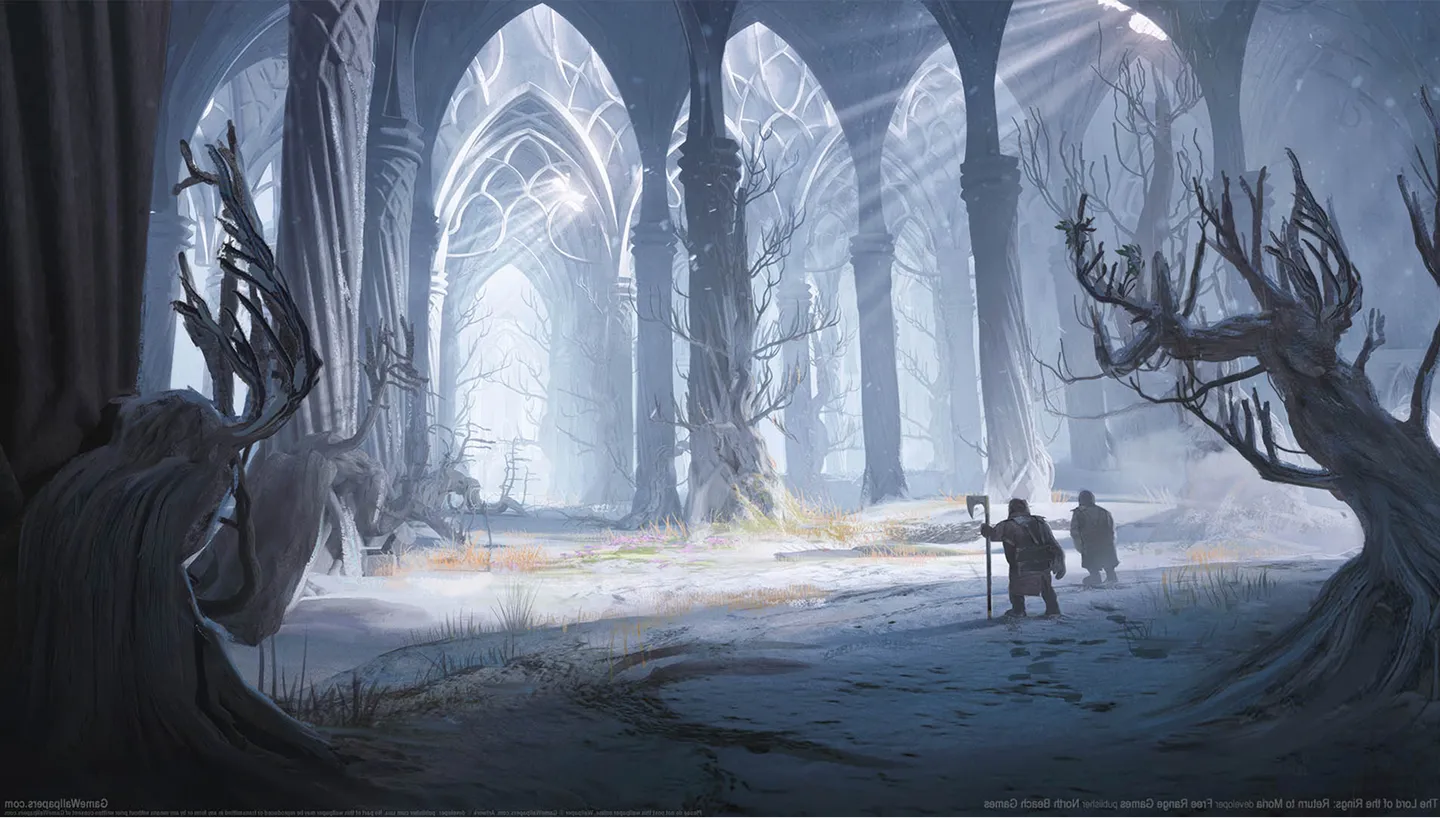
How to launch yourThe Lord of the Rings: Return to Moria server
Get your server live in under 60 seconds.
Choose your plan
Pick RAM, slots, and the data centre closest to your fellowship.
Configure your server
Set difficulty, world type, and player limits from a clean panel.
Deploy with Ping AI
Live in under 60 seconds, fully ready to play.
Invite and play
Share your IP and delve into the mines together.
No complicated setup. Your server launches in minutes.

Simple yet powerful control panel
for The Lord of the Rings: Return to Moria
Not sure how to configure your server? Ping AI walks you through every setting so your fellowship can get delving fast.
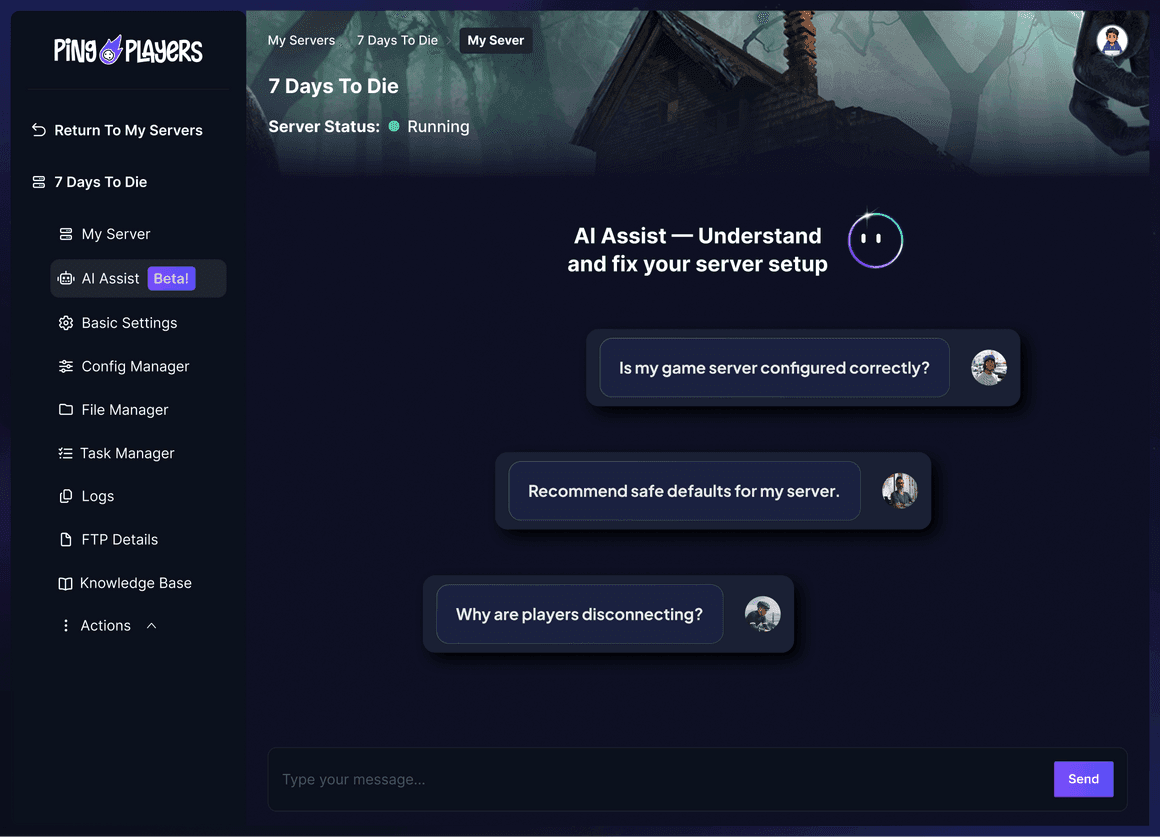
Meet Ping AI,
your The Lord of the Rings: Return to Moria server quartermaster
The first AI built just for gamers.
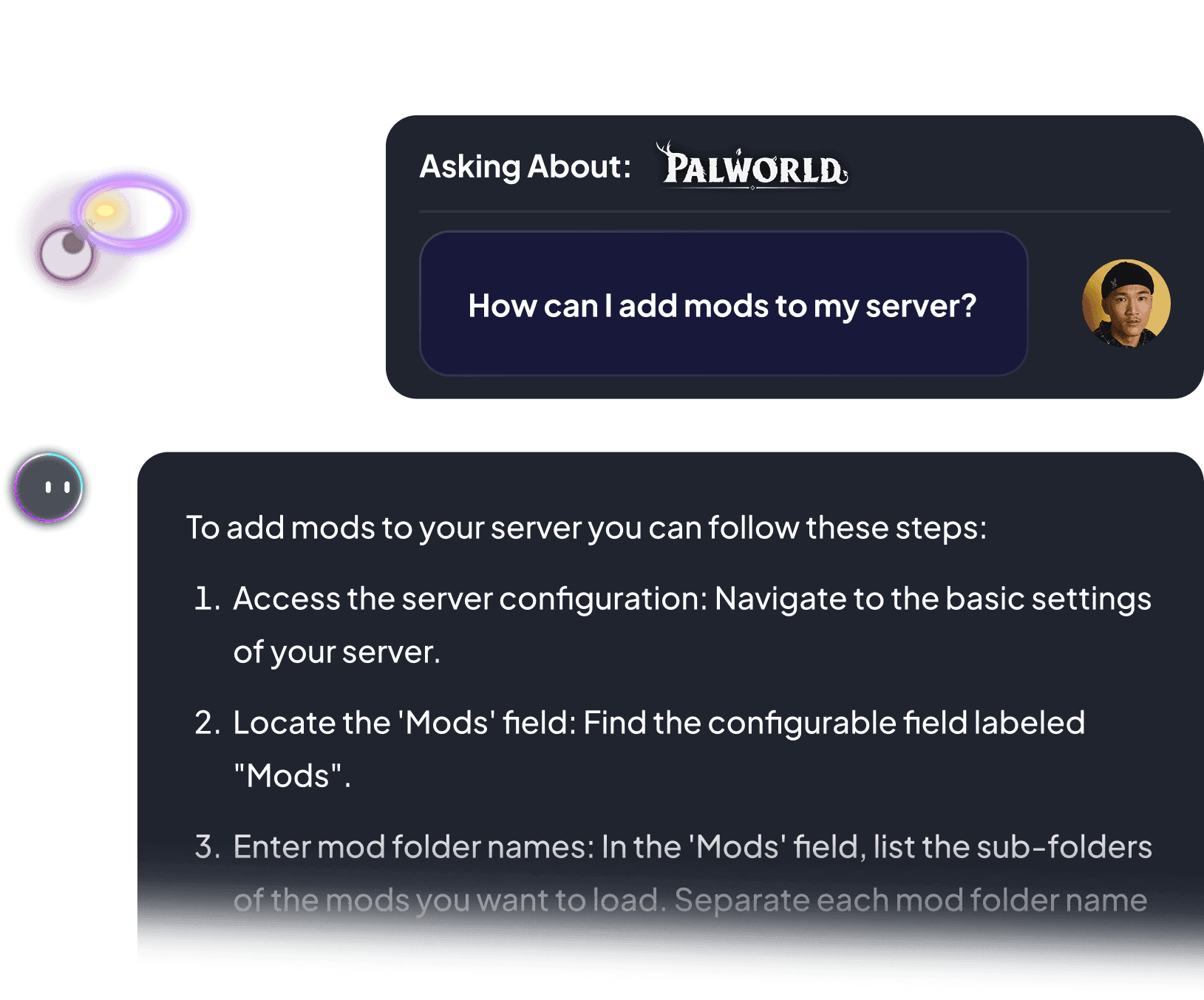
Set difficulty, adjust world settings, or restart your server. All by chatting.
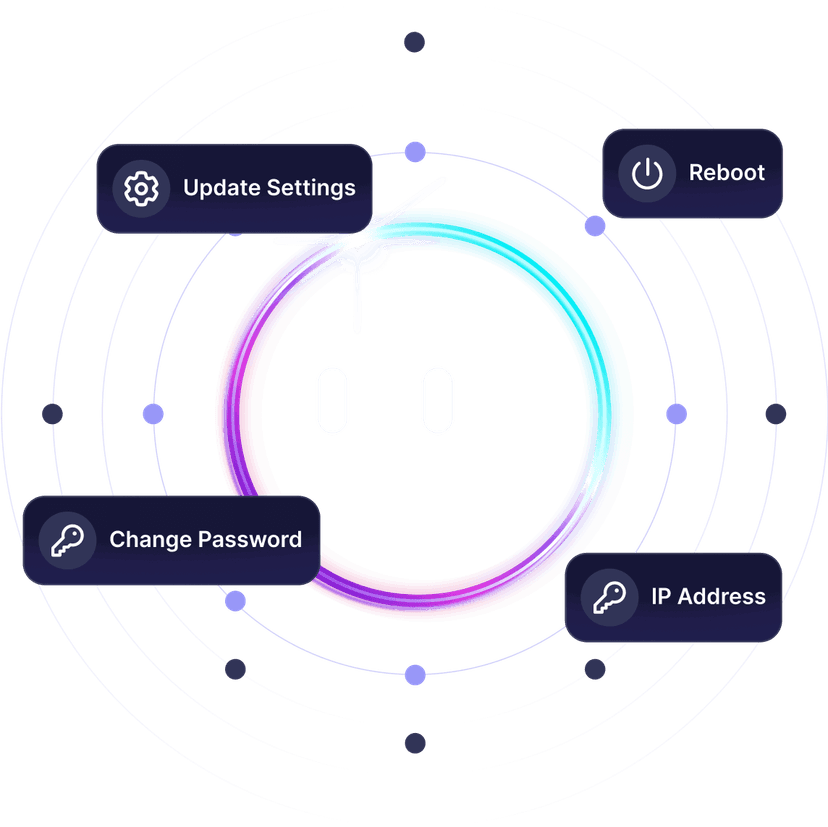


Not sure how to set up your server?
Ping AI handles it. Relax.
From adjusting difficulty to fixing server errors, Ping AI takes care of it.
Because getting your The Lord of the Rings: Return to Moria fellowship online should not feel like a chore.

Servers built for how
The Lord of the Rings: Return to Moria actually runs
Reliable hosting depends on performance, save stability, backups, and proper server control.
Dedicated The Lord of the Rings: Return to Moria server
vs self-hosted and public servers
A dedicated server stays online independently from any player.
We prioritize lag free The Lord of the Rings: Return to Moria gameplay
As gamers we hate lag. It ruins the session. That is why we never oversell our servers, so everyone plays The Lord of the Rings: Return to Moria without a hiccup.
Global network for perfect The Lord of the Rings: Return to Moria gameplay
Choose the server location closest to your fellowship to reduce latency during combat, mining runs, and co-op exploration.

Change games anytime.One server does it all.
Switch between 50+ games without losing progress, paying extra, or setting up again.














Ready to host your The Lord of the Rings: Return to Moriaprivate server?
Launch your own server in minutes with full control over settings, difficulty, and performance.
See why The Lord of the Rings: Return to Moria gamers
trust PingPlayers
Trusted by thousands of The Lord of the Rings: Return to Moria players worldwide.
Frequently asked questions
We accept Credit and Debit cards, ApplePay and GooglePay and PayPal.
Each cluster of players can be automatically renewed by enabling Auto Renew on "My Servers->Edit Cluster" if you haven't done so when you ordered it. It will charge the same payment method used originally.
You can disable auto-renew on your cluster and delete all your servers. Your cluster will be removed on its due date.
Select the game and customize the contract length and max player count and you'll be taken to checkout.
No, to cancel you need to go to My servers->Manage Cluster->Disable Auto Renew.
Yes, within the first 24 hours after the initial ordering of the server.
Payment methods are added on checkout; try ordering something or reconfiguring an existing server and the option will show itself.
Google Pay and Apple Pay.
Select the game and customize the contract length and max player count and you'll be taken to checkout.
About The Lord of the Rings: Return to Moria
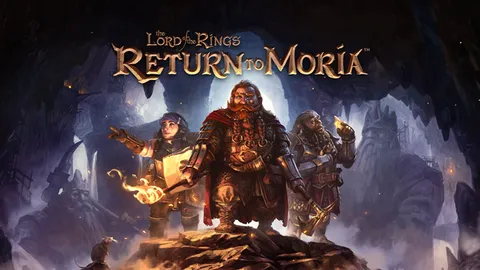
The Lord of the Rings: Return to Moria is a survival crafting game developed and published by Free Range Games. Set in the Fourth Age of Middle-earth, it sends a company of Dwarves back into the lost realm of Khazad-dum to reclaim their ancient home from the dark.
The core loop has you mining ore, crafting gear, cooking food, and building outposts while pushing deeper through the procedural mines. Light is survival currency: the dark hides orcs and worse, so torches, forges, and braziers keep the threat back. The mountain reshapes itself between playthroughs, so no two expeditions through Moria are the same.
Return to Moria plays solo or in co-op for a full company of Dwarves, with crossplay across PC, Xbox, and PlayStation. Saves are persistent, so your outposts, supplies, and dug-out tunnels carry over between sessions. On a private dedicated server, the mines stay live around the clock so any Dwarf can drop in and keep delving without waiting for the host.
Useful The Lord of the Rings: Return to Moria hosting articles
How to Change World Generation Settings in your LotR: Return to Moria Server
The article guides players on changing world generation settings. Return to Moria world generation settings can’t be changed after creation, so a new world must be made. In Basic Settings, select Campaign or Sandbox, choose a difficulty (Story, Solo, Easy, Normal, Hard, or Custom), adjust Custom Difficulty Settings if needed, set a World Seed, and enter a unique Save World Name, which becomes the server name for invite codes. If changes don’t apply, check or disable the MoriaServerConfig.ini template that may override Basic Settings.
Read articleHow to Manage Permissions in your Return to Moria Server
The article provides a guide on managing permissions in a Return to Moria server using the MoriaserverPermissions.txt file. It outlines available permissions, modification steps, and troubleshooting tips to ensure smooth server management.
Read articleHow to Add Mods to Your Lord of the Rings: Return to Moria Server
This article provides a guide on how to add mods to your Return to Moria server. Return to Moria mods are not officially supported (no workshop), so download .pak mods—often from Nexus Mods or ModDB—stop the server, then use the File Manager or FTP to install them on both the server and each client; all players must have the same mods and you must restart to apply changes. For troubleshooting, if mods don’t show or the game crashes, verify files on server and client, remove problematic mods, and remember Return to Moria modding can be unstable.
Read articleHow to Back up and Migrate your Lord of the Rings: Return to Moria Server Data
This article provides a step-by-step guide for backing up and migrating server data. Return to Moria backups/migration: stop the server, then use File Manager or FTP to download (backup) or upload (restore/migrate) your world save. When restoring or importing a local save, set the Optional World File to the save name (without .sav), then restart the server. If it doesn’t load, ensure the server is stopped and the file is a valid world save (e.g., starts with MW_). Keywords: Return to Moria, backup, restore, migrate, server save, File Manager, FTP, Optional World File, MW save, .sav, game hosting, troubleshooting
Read articleHow to join your The Lord of the Rings: Return to Moria Server
This article provides a comprehensive guide on connecting to game servers for *The Lord of the Rings: Return to Moria*. It details two methods—Direct Connect using IP and port, and using an Invite Code—ensuring players can easily join their multiplayer experiences.
Read articleLaunch your The Lord of the Rings: Return to Moriaprivate server today.
Reclaim the mines, host the depths your way.
Full control over settings, difficulty, and performance.